Accessing Shared Mailboxes and Calendars on MacOS
New Outlook for Mac
Opening a Shared Calendar
1. On the File menu, select Open, then choose Other User's Folder.
2. In the Folder Type list, choose Inbox, Calendar, or Address Book.
Note: In the new Outlook for Mac, only Calendar is available.
3. In the search box, type the name of the person who granted you access. Select their name, then choose Open.
The shared calendar will appear under Shared Calendars.

Notes:
- If prompted with a message about autodiscover-s.outlook.com, select “Always use my response for this server,” then choose Allow.
- Outlook for Mac only supports Full Access permissions for shared mailboxes. Other permission levels may work inconsistently.
- New items created while a shared folder is selected will be saved in that shared folder.
- To remove a shared folder, hold Control, select the folder, then choose Remove Shared Account.
Opening a Shared or Delegated Mailbox
Use this option if you are a delegate or have multiple folder permissions within a shared mailbox.
1. Go to the Tools menu, choose Accounts, then select the account with mailbox access.
2. Select Delegation and Sharing.
3. Choose the Shared With Me tab.
4. Select the + icon to add a shared or delegated mailbox.
Note: If you only have permissions to specific folders and not the top-level mailbox, only the default folders you have access to will appear.
5. You can also select File > Open > Shared Mailbox to access it.
Legacy Outlook for Mac
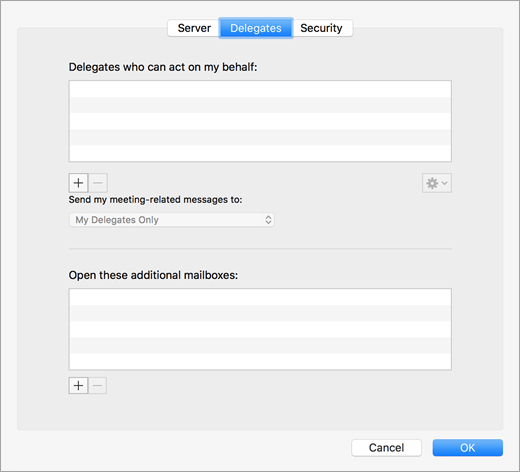
When You Are a Delegate
1. On the Tools menu, go to Accounts > Advanced > Delegates.
2. Add the mailbox under “Open these additional mailboxes.”
Note: If you do not have permissions to the top-level mailbox, custom folders will not appear.
When You Have Full Access Permissions
1. On the Tools menu, choose Accounts.
2. Select the plus sign to add another Exchange account.
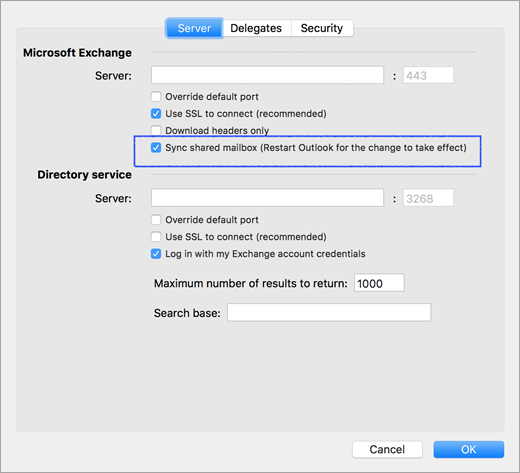
3. Enter the email address of the shared mailbox.
4. Under Authentication, enter your own credentials.
Note: Enabling “Sync shared mailbox” allows automatic synchronization without using Send/Receive.
Related Articles
Accessing Shared Mailboxes and Calendars on Windows
Classic Outlook for Windows Automatic Appearance of Shared Mailboxes After the Service Desk adds you as a member of a shared mailbox, close and restart Outlook. The shared mailbox should automatically appear in the Folder pane. What if it doesn’t ...Access Management Policy
1.0 Purpose The purpose of the Access Control and User Access Management Policy (the "Policy") is to establish and maintain access rights management procedures to prevent unauthorized access to data under Voyages Encore Travel Inc.’s (“Encore”) ...Approved Applications & Systems
Disclaimer: These are approved applications for company use. All other systems, tools, or applications must undergo a security review before use and can be requested by submitting a 'New Tool Request' ticket via the Service Desk. IT Windows Category ...Information Security Policy
1.0 Introduction Voyages Encore Travel Inc. (“Encore”) is committed to safeguarding the confidentiality, integrity and availability of all physical and electronic information assets of the organization to ensure that regulatory, operational and ...[07/12/2024] OneDrive File Sharing
WHO WHO’S IMPACTED BY THE CHANGE? All Encore and Zii employees. WHAT WHAT’S CHANGING? Update regarding OneDrive file sharing for collaboration WHY WHY WAS THIS CHANGE REQUIRED? To ensure continuity and accessibility of shared documents WHEN WHEN WILL ...