Accessing Shared Mailboxes and Calendars on Windows
Classic Outlook for Windows
Automatic Appearance of Shared Mailboxes
After the Service Desk adds you as a member of a shared mailbox, close and restart Outlook. The shared mailbox should automatically appear in the Folder pane.
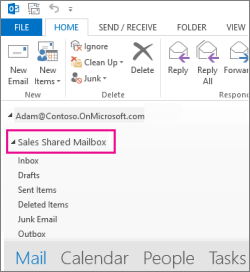
What if it doesn’t appear?
- If you were added recently, it may take several minutes. Wait, then restart Outlook again.
- If the mailbox still doesn’t appear, add it manually:
1. Open Classic Outlook.
2. Select the File tab, then choose Account Settings > Account Settings.
3. Select the Email tab.
4. Ensure the correct account is highlighted, then choose Change.
5. Select More Settings > Advanced > Add.
6. Enter the shared mailbox email address.
7. Choose OK > OK.
8. Choose Next > Finish > Close.
Sending Mail from the Shared Mailbox
1. Open Classic Outlook.
2. Choose New Email.
3. If you don’t see the From field, select Options > From.
4. Select From and choose the shared mailbox.
If it isn’t listed, select Other email address and type the shared address.
5. Choose OK.
6. Complete your message and select Send.
After doing this once, the shared mailbox will always appear in your From dropdown. Recipients will only see the shared email address.
Replying to Messages Sent to the Shared Mailbox
1. Open Classic Outlook and open the message you want to reply to.
2. In the From field, ensure the shared mailbox is selected.
If not, choose it from the dropdown.
3. Complete your message and choose Send.
Searching Within the Shared Mailbox
1. Open Classic Outlook.
2. Select a folder within the shared mailbox.
3. Type your search in the Search box at the top of the Outlook window.
4. Press Enter or select the magnifying glass icon.
Outlook will return results from the selected shared mailbox folder.
Using the Shared Calendar
After you're added as a member, restart Outlook. The shared calendar will appear in your Calendars list.
1. Open the Calendar view and select the shared mailbox calendar.
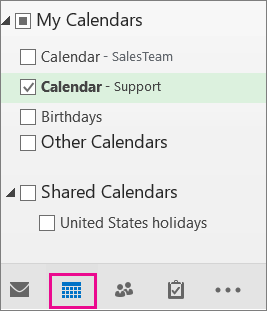
2. Any appointments added will be visible to all shared mailbox members.
3. Anyone with access can create, edit, and manage appointments.
Using the Shared Contact List
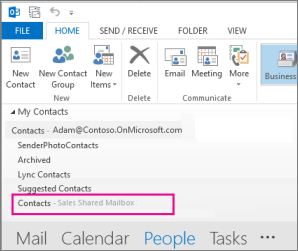
After you're added as a member, restart Outlook. The shared contacts will appear under My Contacts.
1. Open Classic Outlook and choose People.
2. Select the shared contacts list under My Contacts.
New Outlook for Windows
Adding a Shared Mailbox
After the Service Desk adds you as a member, restart Outlook. It should appear automatically.
What if it doesn’t appear?
If it doesn’t show up automatically:
1. Select Mail from the navigation pane.
2. Right‑click your account name in the Folder pane and select Add shared folder or mailbox.
3. Enter the shared mailbox email address.

Note: You may add the mailbox anytime, but you cannot access it until the Service Desk grants permissions.
Locating the Shared Mailbox
In the Folder pane, expand the Shared with me section. The shared mailbox will appear beneath it and expand to show folders like Inbox, Drafts, and Sent Items.
Sending Mail from the Shared Mailbox
1. Select Mail.
2. Choose New > Mail.
3. If the From field isn’t visible, select Options > Show From.
4. Select From and choose the shared mailbox.
If it isn’t listed, choose Other email address and type it.
5. Compose and send your message.
Once used, the shared mailbox will remain in the From dropdown.
Replying to Messages Sent to the Shared Mailbox
1. Open the message.
2. In the From field, make sure the shared mailbox is selected.
3. Compose your reply and choose Send.
Recipients will see only the shared mailbox address.
Searching in the Shared Mailbox
1. Open the shared mailbox folder you want to search.
2. Type your search in the Search bar at the top of Outlook.
3. Press Enter.
Using the Shared Calendar
After you are added as a member:
1. Restart Outlook.
2. Go to Calendar view and select the shared mailbox calendar.
3. All members can create, view, and manage appointments.
Related Articles
Accessing Shared Mailboxes and Calendars on MacOS
New Outlook for Mac Opening a Shared Calendar 1. On the File menu, select Open, then choose Other User's Folder. 2. In the Folder Type list, choose Inbox, Calendar, or Address Book. Note: In the new Outlook for Mac, only Calendar is available. 3. In ...Access Management Policy
1.0 Purpose The purpose of the Access Control and User Access Management Policy (the "Policy") is to establish and maintain access rights management procedures to prevent unauthorized access to data under Voyages Encore Travel Inc.’s (“Encore”) ...[06/12/2024] Scheduled Maintenance - Servers
English version Maintenance mensuelle des serveurs Résumé : Où: Microsoft Azure Quoi: Serveurs Windows Quand: Mercredi 19 juin 2024, entre minuit et 05h00. Détails : L’équipe informatique effectuera la maintenance planifiée mensuelle des serveurs ...[01/09/2025] Scheduled Maintenance - Servers
English version Maintenance mensuelle des serveurs Résumé : Où: Microsoft Azure Quoi: Serveurs Windows Quand: Mercredi 15 janvier 2025, entre minuit et 05h00. Détails : L’équipe informatique effectuera la maintenance planifiée mensuelle des serveurs ...[02/12/2025] Scheduled Maintenance - Servers
English version Maintenance mensuelle des serveurs Résumé : Où: Microsoft Azure Quoi: Serveurs Windows Quand: Mercredi 19 fevrier 2025, entre minuit et 05h00. Détails : L’équipe informatique effectuera la maintenance planifiée mensuelle des serveurs ...